Fetch your desk.
Your Windows PC, Mac or Linux machine on your iPhone, iPad or Android. Nothing to install on the computer.
Coming to the App Store and Google Play

It uses what your computer already has.
Windows, macOS and Linux each ship with a way to share the screen. DeskFetch speaks all three, so the computer needs a setting switched on and nothing else.
Windows
Remote Desktop RDP
- Windows draws a desktop the shape of your phone, and redraws it when you turn the phone
- Text copied on one side pastes on the other
- What the computer plays is heard on your phone, and you can mute it
- Network Level Authentication over TLS, the same sign-in Microsoft's client uses
- Needs Windows Pro, Enterprise or Education. Home has no Remote Desktop to switch on
Mac
Screen Sharing VNC
- Sign in with your Mac account, as you would from another Mac
- The picture is reduced to fit the phone before it is sent, which made a large Retina display about three times quicker to update in our tests
- A key row with Command, Option and Control
Linux Early
VNC or xrdp VNC / RDP
- Works with the usual VNC servers and their password sign-in, once you allow it for that computer
- Six VNC picture encodings, including ZRLE and Hextile
- The newest of the three. It passes our tests and has seen the fewest real machines, so tell us what breaks
Three steps, most of them once.
The full setup guideSwitch on screen sharing on the computer
Remote Desktop on Windows, Screen Sharing on a Mac, a VNC server or xrdp on Linux. It is a setting, not a download.
Put the phone on the same network
At home that is your Wi-Fi. Away from home, Tailscale gives both devices a private network of their own, and the computer's Tailscale name works as its address.
Add the computer in DeskFetch
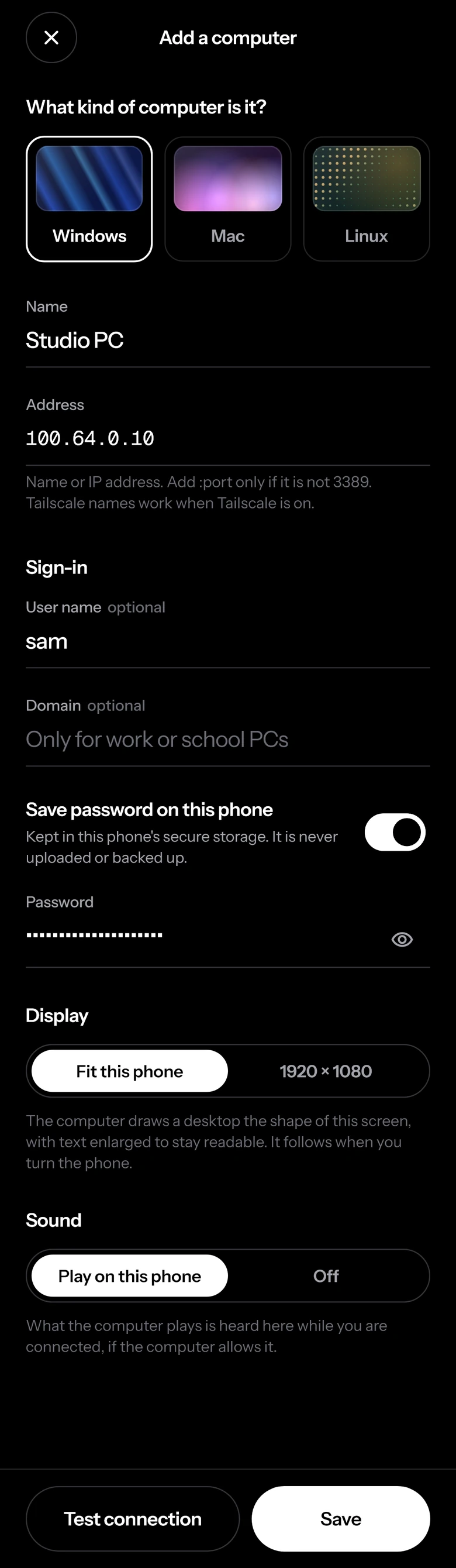
Pick the kind of computer, type its name or address, and connect. DeskFetch can test the address before you save it.
A desktop is a lot to ask of a phone. So the app does the asking.
The keys a phone leaves out
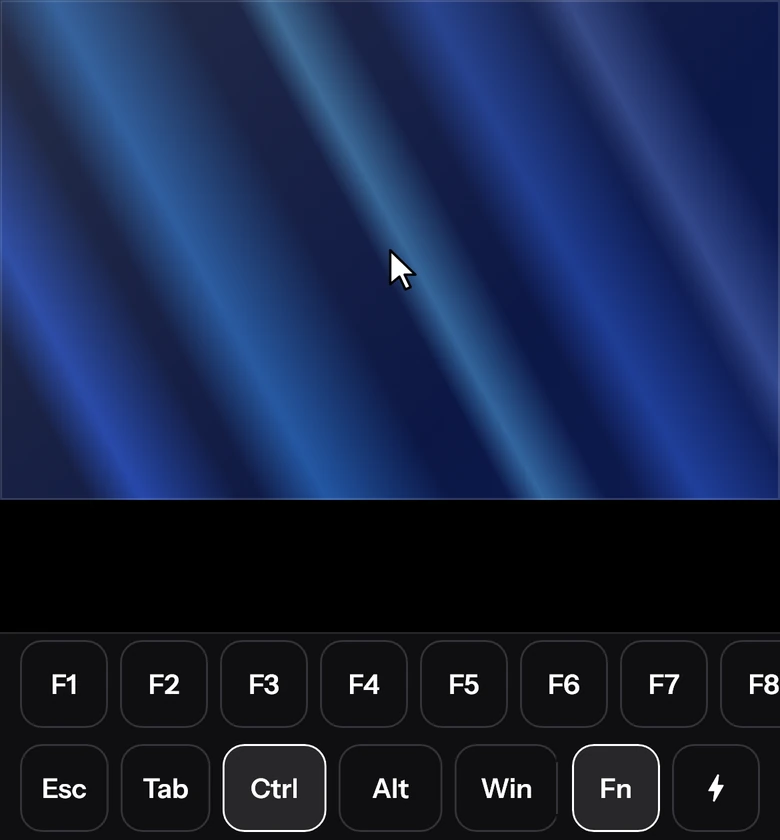
Esc, Tab, Ctrl, Alt, the Windows or Command key, arrows and F1 to F12 sit in a row above the keyboard. Modifiers can be tapped once or locked, and are really held down on the computer. Shortcuts such as Ctrl + Alt + Del are in a menu beside them.
Touch it, or steer it
Tap where you mean, or switch to trackpad mode and move the computer's own pointer with your thumb. Pinch to zoom, and the view follows the pointer. Two fingers scroll.
A picture that fits
Windows is asked for a desktop with the pixels of your screen, with text enlarged so it stays readable. A Mac sends its picture already reduced. Either way you are not squinting at a monitor through a keyhole.
Several computers at once
With Pro, stay connected to as many as four and move between them without signing in again. Only the one on screen takes your typing and plays sound; the others wait where you left them.
Room to work on a tablet
On an iPad, an Android tablet or an unfolded phone, your computers sit in a list on the left and the one you picked fills the right, with every action in reach. Turn the device and the layout follows.
Sign in once, if you want to
DeskFetch asks before it saves a password. Saved ones stay in the phone's own secure storage, the Keychain on iPhone and the Keystore on Android, and are never uploaded or backed up.
Your phone talks to your computer. Nobody stands in between.
There is no DeskFetch server for your screen to pass through, because there is no DeskFetch server.
No account
Nothing to register and no email to give. The app opens on your list of computers.
No relay
The connection goes from the phone to the computer over your own network. We never see it.
No tracking
No analytics and no advertising code. The app does not report what you do.
You are told who answered
The first time you connect to a Windows computer you see its certificate fingerprint. If it ever changes, DeskFetch stops and says so.
One computer is free. All of them is $4.99 a month.
Free
$0
- One computer
- Every feature of the app
- No time limit
Pro
$4.99a month
- As many computers as you have
- Every feature of the app
- Cancel whenever you like
Pro is a monthly subscription bought in the app and billed by Apple or Google, who show the price in your currency. It renews each month until you cancel in your Apple Account or Google Play settings. If Pro ends, nothing is deleted: you choose the one computer to keep using and the rest wait for you.
Questions people ask first.
Do I have to install anything on my computer?
No. DeskFetch connects to the screen sharing that Windows, macOS and Linux already include. You switch it on in the computer's settings.
Does it work with Windows Home?
Not on its own. Windows Home can connect to other computers but cannot be connected to, because Microsoft leaves the Remote Desktop host out of that edition. Windows Pro, Enterprise and Education all have it.
Can I reach my computer when I am away from home?
Yes, with a private network such as Tailscale on both the phone and the computer. DeskFetch then uses the computer's Tailscale name or address. We do not recommend opening Remote Desktop or VNC ports to the internet on your router.
Do you see my screen or my passwords?
No. There is no DeskFetch server. The picture, your typing and your sign-in go between your phone and your computer, and saved passwords stay in the phone's secure storage.
When can I get it?
DeskFetch is being finished and tested now and is coming to the App Store and Google Play. This page will carry the download links the day it is released.